

How do I build accommodate remote students with Zoom?
Most of our courses are slated to run without allowing students to connect via Zoom directly. However, sometimes students get approved to do so by Academic Affairs. Here’s how to accommodate them if that should happen.
For those of you who already planned to connect to Zoom because that’s how we’re connecting to overflow spaces, this won’t change much. Many of our large lecture classes have their Zoom links posted on the desktop computer, as they are necessary for connecting to the overflow spaces. If this does not apply to your class (because your class is small and never needs overflow), I suggest you also copy paste the Zoom info into a Word Doc and place this on a thumb drive you bring to your classroom, as the link may not already be on the classroom computer.
As always, please ensure you have your 2FA phone with you, as signing into Zoom requires Google sign in.
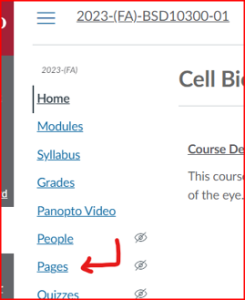
- Go to your Canvas course and click on Pages in the left side navigation area
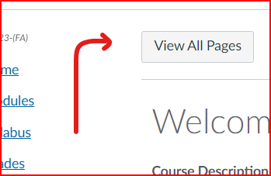
- Click on the button that says “View All Pages”
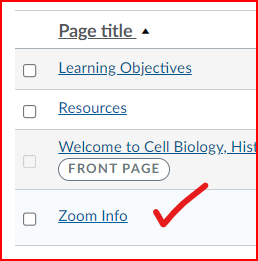
- Click on the “Zoom Info” page
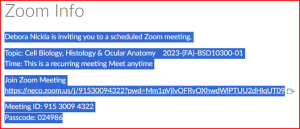
- Select the contents and copy/paste them into an email.
How to Lock the Meeting
If unauthorized students are trying to connect from home, you should announce into the Zoom that you are not accepting connections from anyone not specifically approved to use Zoom by Academic Affairs, kick them out of the Zoom meeting, and then lock the meeting. Here’s how:
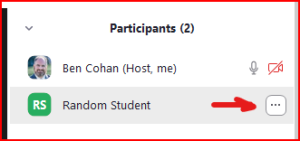
- Open the Participants list and hover over the unauthorized user to reveal the three dots (more)
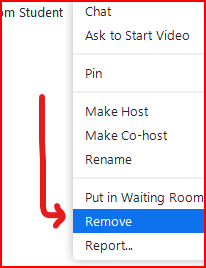
- From the dots menu, choose “Remove”
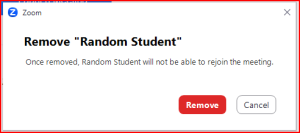
- In the pop up that occurs next, click the red Remove button to confirm. Anyone removed by the host will be barred from joining the meeting again.
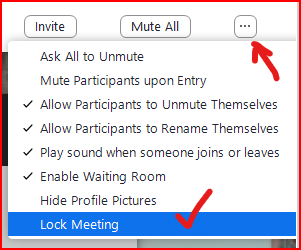
- To Lock the meeting, which rejects any further participants trying to join, click the three dots at the bottom of the participants window and choose Lock Meeting
Need Extra Support?
Reach out to the TLC team any time you’d like a hand accommodating a remote student or managing your Zoom meeting.
-
- Email: tlc@neco.edu
- Send us a request: Request Support