

Skip to main content
How do I...?
How do I sync my Canvas course with PointSolutions?
- On the Course Navigation menu in Canvas, click PointSolutions. *If you do not see PointSolutions in the menu, go to Settings > Navigation > move item from disabled list to active.
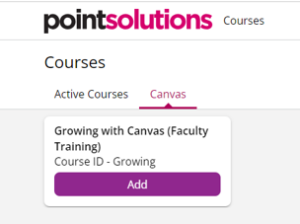
- You will be directed to sign in using your NECO google account.
- When you arrive at the PointSolutions Instructor portal, you will see two course tabs; Active Courses and Canvas.
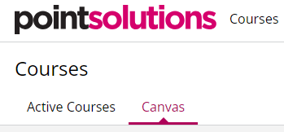
- Click on the Canvas tab. You may be prompted to authorize your Canvas (Instructure) account. Simply click Authorize and continue.
- You will see all courses that you have a Teacher role in. Click Add to move the course from the Canvas tab to the Active Courses tab.
- After you have activated your course in the PointSolutions portal, you will have the ability to send session data directly to the course gradebook in Canvas.
Need Extra Support?
Reach out to the TLC team any time you’d like a hand syncing your Canvas course with PointSolutions.
-
- Email: tlc@neco.edu
- Send us a request: Request Support