

Skip to main content
How do I...?
How do I use the Canvas Gradebook?
Effective use of the Gradebook provides students and faculty with a real-time view of student performance, supports early intervention, and improves assessment transparency and consistency.
Step-by-Step Instructions
- The Gradebook allows instructors to easily input, manage, and release grades to students. To get started, click the Grades link in Course Navigation.
- When you first open the Grades page, the course Gradebook view displays by default. The course Gradebook view displays a list of all students and assignments in your course.
- At the top of the Gradebook, you can also access the Gradebook options utilize the search function, open the keyboard shortcuts
 , and open gradebook settings
  .
. - Before students submit assignments in your course, you should configure your course grading policies. You can set automatic grading policies for late and missing assignments, select a course-wide grade posting policy, and enable advanced grading options in Gradebook Settings.
- To open Gradebook Settings, click the Settings icon.
- From the Late Policies tab, you can ask Canvas to automatically deduct points for missing and late submissions. To automatically apply a grade for missing submissions, click the Automatically apply grade for missing submissions checkbox and enter the grade in the Grade Percentage for missing submissions field.
- To automatically deduct points for late submissions, click the Automatically apply deduction to late submissions checkbox. Enter a deduction percentage, an interval, and a lowest possible grade percent.
- From the Grade Posting Policy tab, you can specify a course-wide grade posting policy. When you select an automatic posting policy for the course, assignment scores and instructor comments are visible to students upon entry.
- When you select a Manual posting policy for the course, any assignment score or comment remains hidden from student view until you manually post grades for each assignment.
- From the View Options tab, you can use the Arrange by drop-down menu to display assignments alphabetically, or by due date, points possible, or module.
- The Show options allow you to enable Notes, Unpublished Assignments, Split Student Names, Hide Assignment Group Totals, or Hide Total Columns
- The Status Color settings allow you to customize the displayed status color for assignment submissions. Customize the status color options for late, missing, resubmitted, dropped, and excused assignments. To apply your settings, click the Apply Settings button.
Student Names
- By default, the Student Name list displays all students alphabetically by last name in descending order. You can manage the list display in the Student Name options menu.
- The Sort by options allow you to display students by data type. Available sortable data type options include student name, SIS ID, Integration ID, or Login ID. You can also order the student list to display student names in ascending or descending order based on the selected data type.
- The Display as options allow you to view student names by first name last name or last name first name. The display option does not affect your selected Sort by options.
- The Secondary info options allow you to manage the secondary student information that displays below student names in the Student Names list. You can also choose to remove secondary information by clicking the None option. In addition, you can also choose to view inactive and concluded student enrollments in the student list.
Applying Filters
- The course Gradebook assignments list displays your course assignments in the same order that they appear on the Assignments page.
- The Filters options allow you to enable assignment display filters. You can create and apply specific gradebook filters that may be used once or saved for future use.
- You can enable group, module, section, student group, status, submissions, start & end dates, and, if applicable, grading period filters. Enabled filters display above the assignments columns in your gradebook. To filter assignments, click the filter drop-down menu and select an option.
- Multiple filters can be applied to offer more precise views of your gradebook data. To reset the filters, click the Clear All Filters button, or click the x on the individual filters.
- The gradebook assignments columns scroll horizontally while the Student Name column remains static. When you create a new course assignment, an assignment column is automatically added to the Gradebook. You can resize a column or drag-and-drop an assignment column to a new location in the Gradebook.
Assignment Options
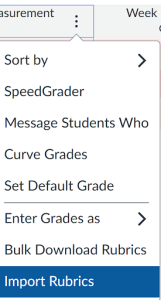
- To view options for an assignment, click the assignment Options menu. In the menu, you can sort the gradebook to display by grade or status.
- You can also use the SpeedGrader, message students, curve grades, set a default grade, post hidden grades, hide grades that have been posted, enter the grade as another grading option, and download student assignment submissions.
Icon, Colors, Grades and Grid
- The different icons and colors in the gradebook cells represent assignment and submission statuses within Canvas.
- To enter or edit scores in the Gradebook, click the cell for the assignment and student that you want to change.
- Enter the score according to the assignment grading option. To view additional details about a submission, click the Grade Detail Tray icon in the assignment cell.
- The tray displays the student’s name, the name of the assignment, a link to view the submission in SpeedGrader, grading information, submission status options, and a comment field.
- The gradebook also displays a total column for each assignment group and for the total grade for each student in the course. If you have enabled the final grade override, the Override column displays next to the Total column in the Gradebook.
- You can import and export gradebook data from the Actions menu. To export a CSV file of your gradebook, click the Export link. To import changes to your gradebook, click the Import link and select the CSV file with your changes.
Gradebook menu
-
- You can switch to the Gradebook Individual View. This view allows you to assess individual students and individual assignments one at a time.
- In Global Settings, select your preferred Gradebook settings.
- In Content Selection, select individual students and assignments using the Select drop-down menus. You can also use the Previous and Next buttons to quickly navigate to new students or assignments.
- The Grading section displays the selected content.
- You can view additional information in the Student Information and Assignment Information sections.
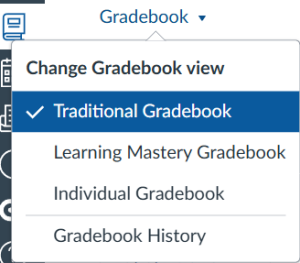
- To return to the course Gradebook View, click the Gradebook drop-down menu and select Traditional Gradebook.
- In the Gradebook menu, you can also switch to the Gradebook History page.
- Gradebook History displays a log of grading changes in your course. Use the gradebook history filter options to view gradebook history by student, grader, assignment, and date.
TLC Pro-Tips for Course Enhancements
-
- Data-Informed Insights: If utilizing Canvas Quizzes or New Analytics, check your course data after the first week of the term. This insight will help you identify which resource folders students are accessing most frequently.
- Accessibility Check: Always run the native Canvas Accessibility Checker (the small person icon at the bottom of the Rich Content Editor) before publishing a new content page. This ensures all tables, text colors, and media elements remain fully accessible to all modern learners.
- Student Interaction: Consider integrating short, informal Canvas surveys. This active feedback measure lets you stay highly responsive to ongoing student academic and personal growth needs.
- Question Stem Construction: Follow the faculty item development guide to have the strongest, concise question stems that will help lead to better assessments with better measurable results.
Additional Resources
Canvas: What is New Quizzes?
Canvas: How do I create a quiz using New Quizzes?
Canvas: How do I use the Moderate page in New Quizzes?
Canvas: Gradebook Overview
Need Extra Support?
We are here to partner with you as you enhance your courses. If you run into technical issues or want a collaborative consultation on designing custom interactive modules, please reach out to our team:
- Email: tlc@neco.edu
- Office Hours: View our current consultation schedule on the TLC website portal