

ExamSoft: How-To Post An Assessment
Once you have created an assessment, you are ready to post it. This will make it visible to Exam Takers for download. Note that it will take up to 15 minutes to be available for download. There are many options to post an assessment to optimize the assessment experience. You can adjust the dates for downloading exams, and set a required uploading deadline for answer files. Plus, you can schedule email reminders for Exam Takers
- Navigate to the Assessments tab.
- Select an assessment that you want to post and scroll to the bottom of the page.
- Click Post Assessment.
- Complete the Exam Posting Options (see below)
NEW REQUIRED FEATURE: Ping & Release
Academic Affairs has adopted the Ping & Release security feature as a requirement when posting midterm/final exams. This feature will make it impossible for a student to open more than one download of a single exam posting without actions taken by a proctor. Here are the two scenarios this feature will prohibit:
A student downloads an exam on one device then comes to NECO and asks for a second download on another device, takes the exam at the College, then goes home and opens the exam a second time to take pictures of the questions.
OR
A student has downloaded the exam but at the last minute is approved to take it a few days after the main group. After receiving the exam password from a fellow student, they open the exam and read through the exam to cheat, or they take pictures to publish/leak. Then they come to NECO to take their exam days later and request a second download.
When Ping & Release is enabled when posting the exam, these scenarios become impossible unless the student learns the exam’s Universal Resume Code (which is why we should never write this on the board). Keep in mind, this ONLY pertains to a single post of an exam. If we create a second post of an exam, a student who receives both postings would be able to open one download of each, even if the exams in each post are exactly the same and Ping & Release were enabled for both.
What changes might we see on exam day?
On exam day, students need their device to be connected to the internet at the moment they enter the password and begin the exam. Proctors should announce to students that they should not be manually shutting off their wifi ahead of entering the password. If a student sees a pop-up message, they should show this to the proctor, who will be trained to recognize messages that point to suspicious activity. Proctors would notify Emily and/or the IOR for approval before entering a code to bypass the ping requirement.
Required Fields:
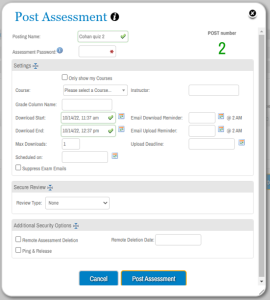
- The Posting Name, by default, is the same as the Assessment Name; this can be changed to customize each posting of an assessment.
- Assessment Passwords are required to post an assessment. The password must be a minimum of 6 characters and is case-sensitive.
- Select the Course for which to assign the assessment from the drop-down menu. Be sure to select the correct course!!
- Enter the Download Start and End dates using the calendars. *It is recommended that the download start time be 24 hours prior to the scheduled start of the exam. The download end should be 1-2 hours AFTER the exam is scheduled to END.
- Maximum Downloads – Please leave this set to ONE, as allowing additional downloads could allow a student to open a second download at home and leak the contents
- **NEW** – Ping & Release – found at the bottom, under Additional Security Options. Academic Affairs has made this a required feature for all midterms and final exams. Please check the box to enable it.
Optional:
- Enter the name of the Instructor as well as the Grade Column Name.
- Download/Upload Email Reminders (sent at 2am EST) – The Download and Upload Email Reminders will only be sent to Exam Takers that have not Downloaded or Uploaded their answer files.
- Upload Deadline – You can set the date and time to restrict Exam Takers from uploading exam answer files.
- Scheduled On – This date is important to ExamSoft for internal planning purposes. Please be sure to provide this information.
- Remote Assessment Deletion & Deletion Date (in Additional Security Options) – this is if you want to ensure that any copies of exams that students have downloaded but NOT taken are deleted on the specified date. This may interfere with plans to allow a student to take the originally posted exam several days after the rest of the class takes the exam.
Need Extra Support?
Reach out to the TLC team any time you’d like a hand posting an assessment in ExamSoft.
-
- Email: tlc@neco.edu
- Send us a request: Request Support