

Skip to main content
How do I...?
Strengths and Opportunities Report: Instructions for generating student reports in ExamSoft
- Open ‘Assessments’
- Click on Cell Bio Midterm Fall 2018
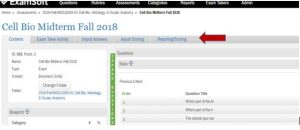
- Click ‘Reporting/Scoring’ – see the red arrow below
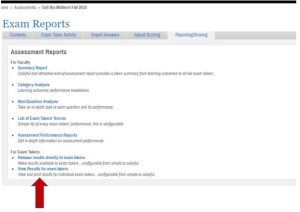
- That will bring you to the page below. Click ‘View Results for exam takers’ (red arrow)
- You will be directed to the page below called Strengths and Opportunities. This will list all of the students who took your exam.
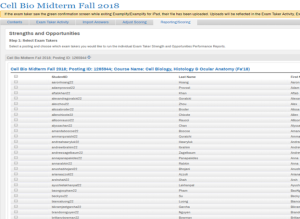
- On the left hand side of the screen (see above) you will have the ability to check off a box to select the individual you want to run a report for. You can select multiple students at a time.
- When a student has been selected, scroll to the bottom of the page and click the ‘NEXT’ button.
- You will be directed to the page below. Make sure to check the boxes exactly as they are in the image below.
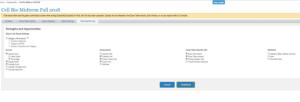
- Then click ‘Download’. A pdf report will be generated and you will be able to print it.
Need Extra Support?
If you have questions about generating Strengths and Opportunities reports in ExamSoft, we’re happy to help.
-
- Email: tlc@neco.edu
- Send us a request: Request Support