

Skip to main content
How do I...?
How do I add an assignment group in a course?
Why This Strategy Matters
Assigning groups allows you to set assignment weights for final grading.
Step-by-Step Instructions
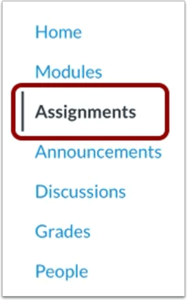
- In course navigation, click the Assignments link.
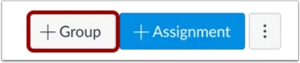
- Click the Add Group button.
- Type the assignment group name in the Group name field.
- If you want to weight the final grade for students using assignment groups, the percentage will appear in the Percent of total grade field.
Create Assignment Group
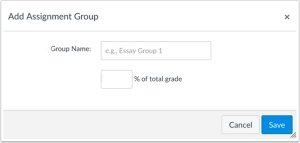
- Click the Save button.

View Assignment Group
- View your Assignment Group.
- Learn how to create assignment shells and assignments for your Assignment Group.
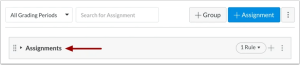
Manage Assignment Group
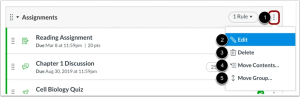
- To manage an assignment group, click the group’s options [1] drop-down menu.
- To edit the assignment group, click the Edit link[2]. You can edit the assignment group name and the weighted percentage, if applicable.
- After you’ve added assignments to your assignment group, you can also edit the assignment group to set assignment group rules.
- To delete the assignment group, click the Delete link.[3]
- To move all content from an assignment group into another group. Click the Move contents link. [4]
- To reorder an assignment group on the assignments page, click the Move groups link. [5]
Delete Group
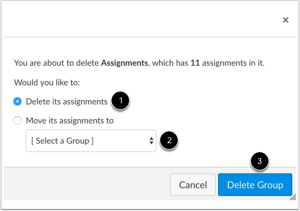
- If you want to delete an assignment group that has assignments in it, Canvas will ask you if you want to Delete the assignments (default) [1] or move the assignments to another group [2]. When you are finished, click the Delete Group button [3].
For additional guidance on assigning weights to your assignment groups, please visit: Weight the final grade
Need Extra Support?
We are here to partner with you as you enhance your courses. If you run into technical issues or want a collaborative consultation on designing custom interactive modules, please reach out to our team:
- Email: tlc@neco.edu
- Office Hours: View our current consultation schedule on the TLC website portal