

Skip to main content
How do I...?
How do I post grades automatically/ manually?
Why This Strategy Matters
Canvas uses Automatically Post Grades as its default setting, showing scores and feedback to students the moment you enter them, whereas Manually Post Grades hides all scores and comments until you intentionally release them
Step-by-Step Instructions
Automatically Posting
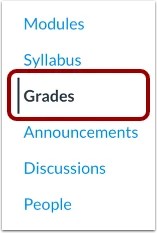
- In Course Navigation, click the Grades link.
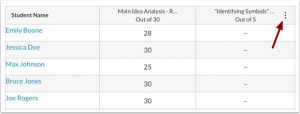
- Hover over the assignment column header and click the Options icon.
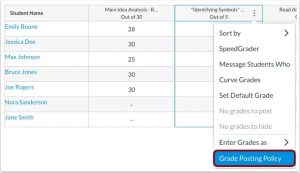
- Click the Grade Posting Policy link.
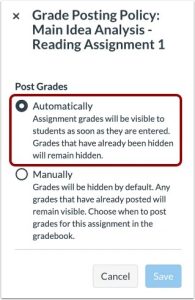
- To post grades automatically, select the Automatically option. When the Automatically option is selected, students can view assignment grades as soon as they are entered.
Notes:
- Anonymous and moderated assignments cannot be set to post grades automatically.
- If you select the Automatically Post Grades option after you have already hidden grades, previously hidden grades will remain hidden.
Manually Posting
- In Course Navigation, click the Grades link.
- Hover over the assignment column header and click the Options icon.
- Click the Grade Posting Policy link.
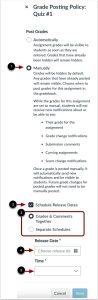
- To post grades manually, select the Manually option [1]. When the Manually option is selected, grades are hidden by default and must be posted to be viewed by students.
- To schedule grades posting, click the Schedule Release Dates checkbox [2].
- Choose whether to release Grades and Comments Together or on Separate Schedules [3], and set the Release Date [4] and Time [5].
- To apply changes to the grade posting policy, click the Save button.
View Gradebook
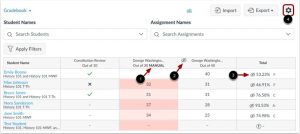
- When a manual posting policy has been applied to an assignment, the assignment header displays the Manual label [1]. This label indicates that a
- Once a submission has been graded, the assignment header displays the Visibility icon [2]. This indicates that there are grades within the assignment that must be posted before they can be viewed by students. manual posting policy is currently in place, and future grades are hidden from student view.
- When grades are hidden from student view, the Total column also displays the Visibility icon [3]. This indicates that the total grade in the Gradebook differs from the total grade viewed by the student.
- To manage the default posting policy for a course, click the Settings icon [4].
Need Extra Support?
We are here to partner with you as you enhance your courses. If you run into technical issues or want a collaborative consultation on designing custom interactive modules, please reach out to our team:
- Email: tlc@neco.edu
- Office Hours: View our current consultation schedule on the TLC website portal