

Skip to main content
How do I...?
How do I use SpeedGrader?
SpeedGrader is a fast, efficient way to grade assignments and discussions.
Step-by-Step Instructions
- Click on the Assignments link
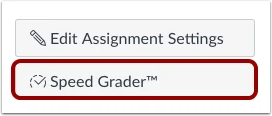
- Open SpeedGrader from the assignment.
View Student Submission
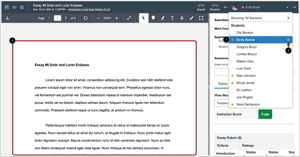
- Use the student list to locate a student submission [1]. The Eye icon indicates the student you are currently viewing [2].
- View and grade the submission [3] based on the submission type:
View Sections
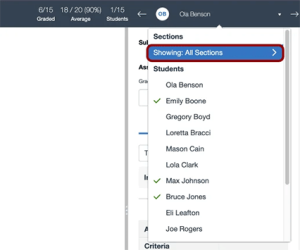
- To view all sections, click the Showing: All Sections drop-down menu.
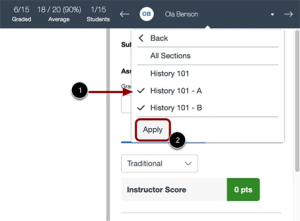
- In the Sections drop-down menu, select the desired section [1]. Then, click Apply to filter multiple submissions at once [2].
View No Submission Status
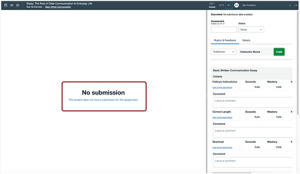
- If the student has not submitted an attempt, the No submission message displays.
View Empty Course Text
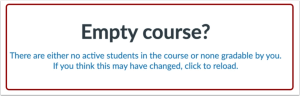
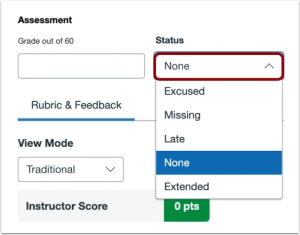
- If the course has no content, the Empty course? message displays. To edit the submission status, click the Status drop-down menu.
View Rubric Display
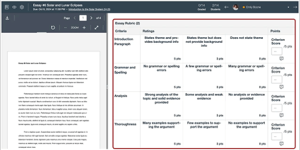
- Rubrics automatically display in the traditional view.
Note: When the Enhanced Rubric feature option is enabled, you can choose additional rubric views.
Need Extra Support?
We are here to partner with you as you enhance your courses. If you run into technical issues or want a collaborative consultation on designing custom interactive modules, please reach out to our team:
- Email: tlc@neco.edu
- Office Hours: View our current consultation schedule on the TLC website portal