
ExamSoft: How Do I Grade Essay Questions?
Instructors can grade essay questions online and can include individualized comments for each essay response in the ExamSoft Legacy Portal.
Step-by-Step Instructions
Navigate to the Grade Essays Tab
- Navigate to the assessment that you need to grade.
- Select the Grade Essays tab.
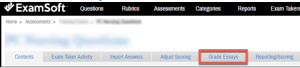
This takes you to the Grading Setup screen, which lists essay questions in the assessment.
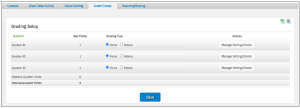
3. Select ‘Points’ under Grading Type.
4. If there is more than one essay question to grade, determine which question you want to start with.
5. For Grading Type, keep the default option, Points, and then select the Manage Settings/Grade button.
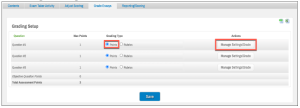
This brings you to the basic grading tab.
6. Select the blue Grade Question button.
7. The grading application will open in a pop up window.
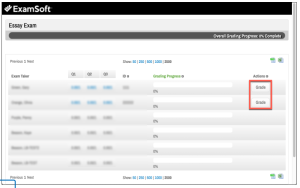
- At the top of your screen, you’ll see a Grading Progress bar for each exam-taker as well as an Overall Grading Progress bar for the assessment.
- In the list of exam-takers, a Grade button appears for each exam-taker who has uploaded the exam.
8. Determine which exam-taker you want to start with, and then select Grade. This will bring you to the grading screen.
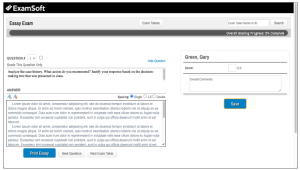
Notes:
- At the top of the screen, the progress indicates the percentage of essay responses that you have graded so far.
- On the left side of the screen, you can see the question as well as the exam-taker’s response.
- Above the question text, you can select a different question (if there are multiple essay questions to be graded).
- In the toolbar above the response, you can change the spacing and font size for easier reading.
- To increase the space available for the response, you can select Hide Question.
- If you would prefer to read from a hard copy, select the Print Essay button (below the response).
- On the right side of the screen, you can see the area to enter your Score and Comments.
9. Review the response and enter the Score and Comments (on the right side of the screen)
10. Click Save.
11. Use the buttons at the lower left corner of the screen to navigate to the Next Question or the Next Exam Taker.
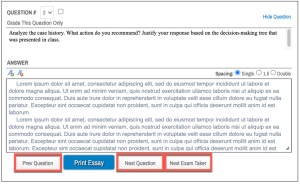
12. Continue until the progress bar indicates that you have completed the grading for the question.
Need Extra Support?
We are here to partner with you as you enhance your courses. If you run into technical issues or want a collaborative consultation, please reach out to our team:
- Email: tlc@neco.edu
- Office Hours: View our current consultation schedule on the TLC website portal