
Skip to main content
How do I...?
How to Require Participants to Authenticate in PointSolutions
To accurately attribute engagement activities to specific learners, requiring participant authentication is necessary. Without authenticating, the PointSolutions application is unable to identify learners or link their responses to their profiles.
You can enforce authentication in two ways: via the PointSolutions desktop application or through the PointSolutions web application.
Procedure- PointSolutions Desktop Application
- Launch the PointSolutions Classic desktop application on your computer and log in with your instructor account.
- At the top right of the application under Mobile Responses, click the Enable link:
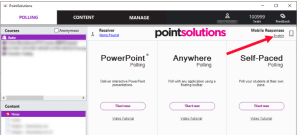
3. Click Session Options.
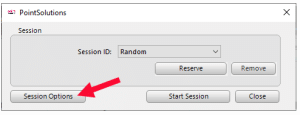
4. On the Session Options window, enable Require Participant Accounts by checking the box at the top of the window and click Save.
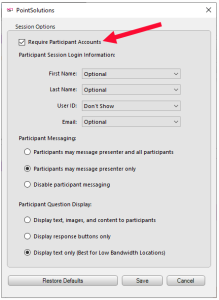
Procedure- PointSolutions Web Application
- Log into https://instructor.turningtechnologies.com/ with your instructor account.
- Click on the settings cog wheel at the top right of the screen, enable the Require Participant Sign In toggle, and click Save.
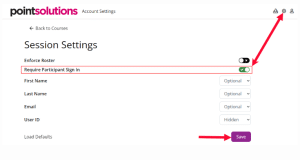
Need Extra Support?
We are here to partner with you as you enhance your courses. If you run into technical issues or want a collaborative consultation, please reach out to our team:
- Email: tlc@neco.edu
- Office Hours: View our current consultation schedule on the TLC website portal