

Skip to main content
How do I...?
How do I create an item bank in Canvas?
By building curated Canvas item banks, you gain an efficient, centralized repository to maximize the work you’ve already created, streamline assessment creation, and effortlessly pull tailored questions for any specific course.
Step-by-Step Instructions
- Navigate to the course that you would like to add the Item Banks to.
- In Course Navigation, click the Item Banks. *If you do not see it listed in your course navigation, please reach out to helpdesk@neco.edu for assistance
- Click the + Bank button on the page.
- In the Bank Name field, enter the desired name of the item bank.
- You can share the new item bank with the current course by clicking the share checkbox.
- To save your bank, click the Create Bank button.
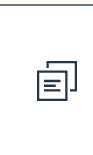
- To duplicate the item bank, click the Duplicate icon.
- To share the item bank, click the Share icon.

- To edit the item bank, click the Edit icon.

- To delete the item bank, click the Delete icon.

Need Extra Support?
We are here to partner with you as you enhance your courses. If you run into technical issues or want a collaborative consultation on designing custom interactive modules, please reach out to our team:
- Email: tlc@neco.edu
- Office Hours: View our current consultation schedule on the TLC website portal