

Skip to main content
How do I...?
Pulling Attendance Data From Zoom
- Go to neco.zoom.us and sign in by choosing your NECO Google account.
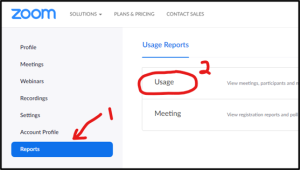
- Click Reports and then choose Usage.
- Check that the date range at the top includes the session for which you want to take attendance. Then click on the Participants link (the number in the Participants column) for the session.
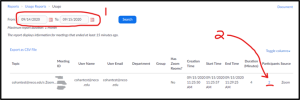
- Check that the date range includes the date of the session for which you want to take attendance. If not, adjust the date range and click Search.
- Then click the Participants link for the session.
- Review the report. Check the Export with meeting data checkbox.
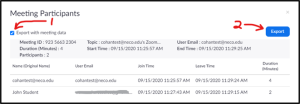
- If a student left the meeting and re-joined it, you will also see a check box for “show unique users”. This combines multiple joins by the same person into one line. You won’t be able to tell if they left the meeting because of technical difficulties, but you can see their total connected time under Duration.
- Click Export with meeting data.
- A CSV file (a simple Excel spreadsheet format) will download to your computer. Open the file with Excel.

Additional Resources
Need Extra Support?
Reach out to the TLC team any time you’d like a hand pulling attendance data from Zoom.
-
- Email: tlc@neco.edu
- Send us a request: Request Support