

How to assign folders for incoming meeting recordings
When Zoom records to the cloud, it will automatically make a copy in Panopto for you. By default it will be placed in the Meeting Recordings folder within your personal “My Folder” location.
You can also create specific rules which will place incoming recordings from Zoom into different folders based on their meeting number. Any cloud Zoom recordings made by meetings not specified as shown below will continue to be placed in the default Meeting Recordings folder.
PLEASE NOTE: this will only affect future recordings, not those you’ve already created. Also, for official course Zoom recordings, you need to perform these steps every semester, as the meeting IDs and course folders are new each semester.
Here is a 1:47 video of this process.
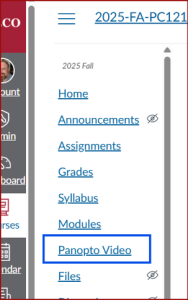
- First, make sure you’ve provisioned (created) your course’s Panopto folder by visiting your course’s Panopto Video tab at least once.
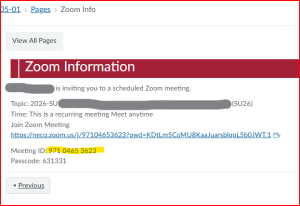
- Find and copy your Meeting ID – this is likely posted in your Canvas course’s Zoom Info page:
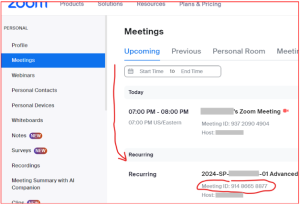
- You can also find this in your Zoom account (neco.zoom.us) by clicking on Meetings on the left. Most course Zoom meetings are set as Recurring, which means they are at the bottom of your meetings list:
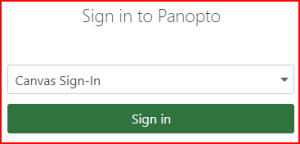
- Go to our Panopto site neco.hosted.panopto.com and sign in using your Canvas account, which uses Google to authenticate.
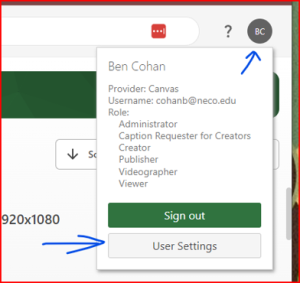
- Click on the circle in the upper right corner, containing your initials, and choose User Settings:
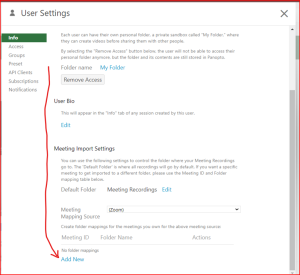
- In the Info tab, scroll down to find the Meeting Import Settings. At the very bottom, click “Add New”
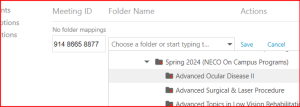
- Select your destination folder. Paste the Zoom Meeting number. Remember to expand the folders using the little arrows until you see course-level folders:
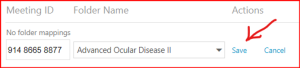
- Don’t forget to click save!
If you have additional meetings you’d like to link to Panopto folders, you can make as many as you need. You can even do this for meetings that don’t have anything to do with courses, like office hours, committee meetings, etc.!
Need Extra Support?
Reach out to the TLC team any time you’d like a hand setting up your Panopto folder mappings.
-
- Email: tlc@neco.edu
- Send us a request: Request Support