

Skip to main content
How do I...?
ExamSoft: Adjusting Questions and Answer Key
Users are able to adjust the correct answer for each question in an assessment or set a new answer key for an entire assessment. When scoring an assessment, users can change the assigned categories for a question, or the scoring options for an item to give full or partial credit, throw out an item altogether, or designate it as a bonus question.
Adjusting Questions
- Navigate to the ‘assessments’ tab, and open a posted assessment
- Select the “adjust scoring” tab in that assessment. The questions in the assessment will be listed within the grid.
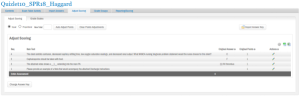
- To make individual changes to questions, click the “pencil” icon in the ‘actions’ column. A new window will appear showing the question, original answer choices, the ability to adjust the answers, as well as scoring options.
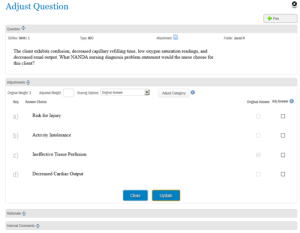
- To change the correct answer for multiple choice or true / false question types, select the correct answer in the ‘adj answer’ column.
- When making answer choice adjustments to select all that apply question types, the user must select the new answer choice(s) from the ‘adj answer’ column. Doing so will require the exam takers to have selected all answer choices in order to receive full credit for this question. If you must make adjustments to a select all that apply question type, we recommend changing the ‘scoring option’ for this question as well. Select all that apply question types do not allow for partial credit scoring.
- If there are multiple adjusted answers selected, you must select one of the following in the ‘scoring options’ drop-down menu:
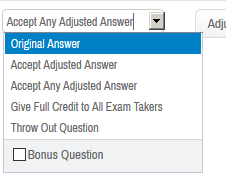
- Accept any adjusted answer – Credit is given for selecting any checked answers
- Accept adjusted answer – Credit is given if they selected all checked answers
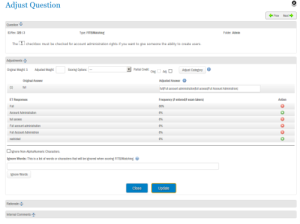
- To change the correct answer for fill in the blank question types, you can type in additional accepted answers within the ‘adjust answer’ field using the vertical bar | to separate accepted answers. You can also see a list of responses submitted by exam takers, the frequency (or percentage) of students that entered a particular response, and accept a response by clicking the green plus sign.
- When adjusting the scoring for a hot spot question, admin users will see the student’s responses. Any ‘pins’ within the border of the marked area are correct, while any selections on the border or outside of the area will be marked as incorrect. Note that the hot spot area may not be changed when adjusting the question. To do so, a new version of the question will need to be created.
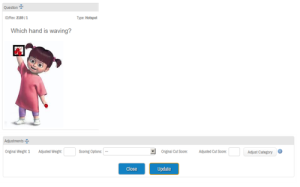
- Alter the weight of the question by indicating a new point value in the ‘adjusted weight’ field.
- Using the ‘scoring options’ drop-down menu, you can also select to:
- Give credit to all exam takers – All students will receive credit for this question; and their raw, points, and percentage scores will increase in accordance with the weight.
- Throw out the question – Makes the weight of the question 0 and removes it from reports
- Mark as bonus question – This will remove this question from counting towards to overall available points on the assessment. Students will still get credit for getting it correct, and may potentially award them with a score greater than 100%.
Note: making these changes will only affect the current assessment. To update the question permanently, please create a new revision of the question.
Need Extra Support?
Reach out to the TLC team any time you’d like a hand adjusting questions or the answer key in ExamSoft.
-
- Email: tlc@neco.edu
- Send us a request: Request Support