

Skip to main content
How do I...?
ExamSoft: Creating a Group of Questions
Users can create a vignette of questions by assigning individual questions to a group. Creating a group of questions will ensure that questions are grouped together in assessments. This will keep questions that are similar in context together in a randomized assessment.
A question group is created in the question bank when entering a question into the system. When questions are added to an assessment, the system will automatically link together the questions based on the group name. If no group name is provided when creating a question, then they will not ‘stick’ to other questions.
Assigning a Group Name
- Navigate to the Questions tab.
- Select a question type to create.
- Fill in the question and answer fields, select the options desired, and add attachments as necessary.
- Type in a group name. Keep in mind group titles are case-sensitive.
- Finish question creation process.
- Questions in the same group will appear together in assessments. When the option to randomize questions is selected, these questions will not be randomized within the grouping.
View Questions by Group Name
- Navigate to the Questions tab.
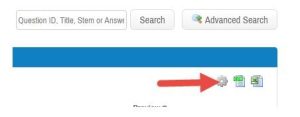
- Click the gear icon to add the Groups column.
- Click the column title to sort by that column.
View Groups in an Assessment
- Navigate to the Assessments tab.
- Select a posted assessment.
- Click the gear icon and select Groups.
- The Groups column is added to the view.
- Questions within the group will always appear in the order listed on the assessment. If you have a vignette where the order of the grouped questions is important, verify that they are in the correct order prior to posting the assessment.
Need Extra Support?
Reach out to the TLC team any time you’d like a hand grouping questions in ExamSoft.
-
- Email: tlc@neco.edu
- Send us a request: Request Support