How to create a survey using New Quizzes in Canvas
New Quizzes supports survey-type quizzes, allowing you to collect anonymous or non-anonymous feedback, with graded or ungraded options. You can view survey data in the Reports tab.
Notes:
Surveys can be added to a module the same way other activities, such as assignments or quizzes are added.
This feature helps you easily gather feedback, gauge understanding, and foster open reflection.
Questions can be set as required or optional.
When creating a Graded Survey, you can assign points for completion; however, individual questions are not evaluated for accuracy.
Step-by-step Instructions
Open Quizzes
- In Course Navigation, click the Quizzes link.
*You can also access quizzes from the Assignments page.
Add and Select Quiz Engine
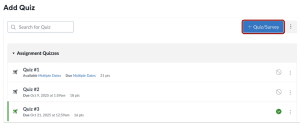
- Click Add Quiz/Survey button.
- In the Choose a Quiz Engine screen, select the New Quizzes/Survey option. To save your quiz engine selection for the course, check the Remember my choice for this course checkbox.
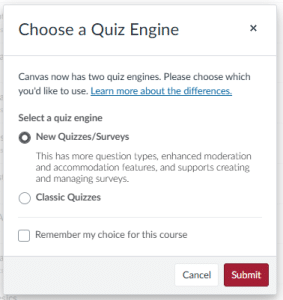
- Click the Submit button.
Create Survey
- In the Assignment Name field, enter the name of your survey. To select the survey type, click the Quiz Type drop-down menu. The options Graded Quiz, Graded Survey, and Ungraded Survey will be available to select.
- To hide student names from graders when viewing survey submissions in SpeedGrader, click the Keep Submissions Anonymous checkbox. Note: Once anonymous submission is turned on for a survey, it cannot be turned off.
- If you selected Graded Survey, enter the number of point students will receive for completing the survey. Note: Points in a graded survey are awarded for participation, responses are not evaluated for accuracy.
Assign Survey
- In the Assign section, you can assign the survey to students, add due dates, and availability dates.
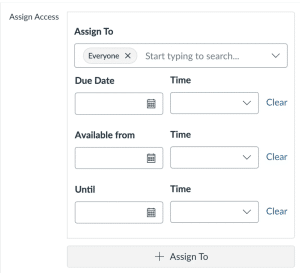
- Click Save before moving to the next step.
Build Survey
- After saving the survey settings, click the Build button.
- To add questions and content to your survey, click the blue + button.
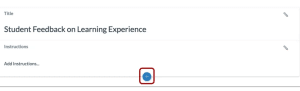
- Select the type of question you want to add. Surveys support the following question types:
- Multiple Choice
- Multiple Answer
- True/False
- Fill in the Blank
- File Upload
Note: When creating or editing a survey, there is no option to select a correct answer, and the Points fields do not display.
- To save the question, click the Done button.
View Survey Results
- In the Reports tab, you can view a breakdown of the results for each question.

- To download a CSV of a survey’s results, click the Generate CSV link, then click the Export button.
Need Extra Support?
We are here to partner with you as you enhance your courses. If you run into technical issues or want a collaborative consultation, please reach out to our team:
- Email: tlc@neco.edu
- Office Hours: View our current consultation schedule on the TLC website portal