Skip to main content
How do I...?
How do I move or copy a question from one item bank to another in Canvas?
You can move a question from one item bank to another in New Quizzes. You can move questions to item banks that you have created or item banks that have been shared with you. Moving or copying a question to an item bank shared with you adds the question to the original item bank, so anyone shared on that bank will see the question.
When a question is moved to another item bank, the question will retain its tags. When a question is copied to another bank, the tags from the original question are not copied to the new question.
Step-by-Step Instructions
Open Item Banks
- In Course Navigation, click the Item Banks link.
- Click the name of an item bank.
Move or Copy Question
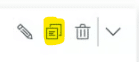
- Locate the question you want to move or copy. Then click the Copy icon:
- To move or copy the question to an existing bank, select the Existing item bank option. Then select the item bank in the Select the destination bank drop-down menu.
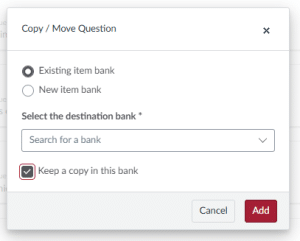
- By default, a copy of the question will be kept in the original item bank. To remove the question from the original item bank, uncheck the Keep a copy in this bank checkbox.
- Click the Add button to complete the action.
Create New Bank
- To create a new item bank, select the New item Bank option.
- Enter the name of the bank in the New Bank Title field.
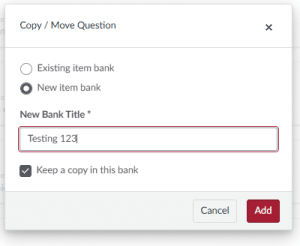
- By default, a copy of the question will be kept in the original item bank. To remove the question from the original bank, uncheck the Keep a copy in this bank checkbox.
- Click the Add button to complete the action.
Need Extra Support?
We are here to partner with you as you enhance your courses. If you run into technical issues or want a collaborative consultation, please reach out to our team:
- Email: tlc@neco.edu
- Office Hours: View our current consultation schedule on the TLC website portal